Stripe tells your site about each payment through a webhook: when a payment succeeds or fails, when a bank debit clears, and when a subscription renews or ends. Payment Page uses these messages to mark payments paid and to run your after-payment actions.
Automatic setup#
When you connect Stripe, Payment Page creates the webhook in your Stripe account and saves its signing secret. There's nothing else to do. Payment Page also keeps that webhook up to date with the events it needs.
Each mode has its own webhook. Connecting test mode sets up the test webhook, and connecting live mode sets up the live one.
When the gateway asks for manual setup#
If Payment Page can't create the webhook, for example because Stripe didn't grant it permission, wp-admin shows "Payment Page: Stripe webhook auto-provision skipped", and Stripe payments for that mode pause until the webhook is ready. Set it up by hand:
In Payment Page > Payment Gateways, click Webhook Settings (Recommended) under the Stripe logo. The popup shows the Webhook URL for the current mode:
https://your-site.com/wp-json/payment-page/v1/webhook/stripe-callback/testLive mode ends in
/liveinstead of/test.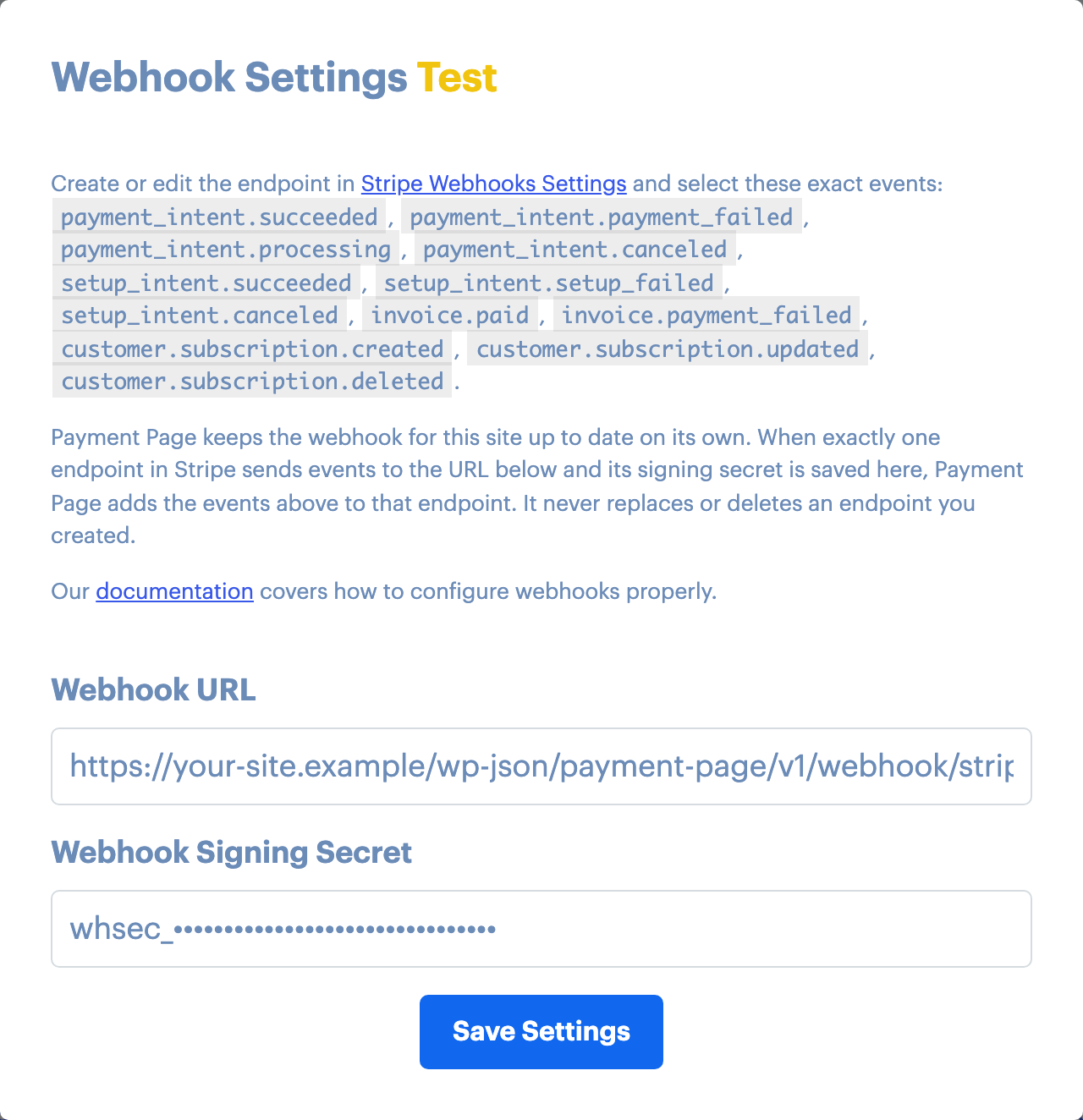
In Stripe's webhook settings, add an endpoint in the same mode with that URL and select exactly these 12 events:
payment_intent.succeededpayment_intent.payment_failedpayment_intent.processingpayment_intent.canceledsetup_intent.succeededsetup_intent.setup_failedsetup_intent.canceledinvoice.paidinvoice.payment_failedcustomer.subscription.createdcustomer.subscription.updatedcustomer.subscription.deleted
Open the new endpoint in Stripe and reveal its Signing secret (it starts with
whsec_).Paste it into Webhook Signing Secret in the popup and click Save Settings.
Repeat for the other mode when you connect it.
Once a signing secret is saved and exactly one endpoint in Stripe sends to your Webhook URL, Payment Page adds any missing events to that endpoint for you. It never replaces or deletes an endpoint you created.
If payments don't update#
When a payment succeeds in Stripe but the form's emails, redirect or HTTP request don't run, Stripe's messages aren't reaching your site. Check:
- the endpoint in Stripe is in the right mode and uses your Webhook URL exactly,
- all 12 events are selected,
- nothing blocks
/wp-json/on your site: a security plugin, a firewall rule or Cloudflare bot protection. See Known Plugin Conflicts.
Stripe shows every delivery attempt and your site's response on the endpoint's page, which is the quickest way to see what went wrong.