Payment Page exposes confirmation-email settings for an Admin notification and a Payer notification. When setting up a payment form, go to Actions on Submit and select Email.
After enabling emails, you'll see fields for configuring the recipients and the messaging. The following fields are available:
- To — the recipient list for the Admin notification. Separate multiple emails with commas to send the notification to more than one address.
- Subject Admin — the subject line of the email sent to the addresses in To.
- Subject Payer — the subject line of the email sent to the customer who completed the payment.
- Body Admin — optional plain-text body. Leave blank to use the default HTML summary (an unordered list of submitted field values). When set, the value is treated as plain text: merge tags are substituted, line breaks become
<br>, and the message is HTML-escaped before sending. A non-empty plaintext part (AltBody) is attached for mail clients that prefer text. - Body Payer — same as Body Admin, but only for the payer copy.
- From email — the email address that the notifications appear to come from. Leave blank to use the WordPress default.
- From name — the friendly name that appears as the sender. Leave blank to use the WordPress default.
Merge tags (fixed set)#
When you use Body Admin or Body Payer, you can include these tokens verbatim; they are replaced at send time:
{customer_name}, {customer_email}, {form_name}, {amount}, {currency}, {payment_date}, {order_id}, {site_name}, {first_name}, {last_name}, {frequency}
Test send#
On the WordPress payment form editor (custom builder screen), use Send test emails after saving your settings. This calls the authenticated REST endpoint POST /wp-json/payment-page/v1/administration/payment-forms/{id}/test-email and attempts to send sample Admin and Payer messages to the configured To list and your logged-in user email, with [TEST] prefixed on subjects. A successful WordPress mail call is not proof of inbox delivery.
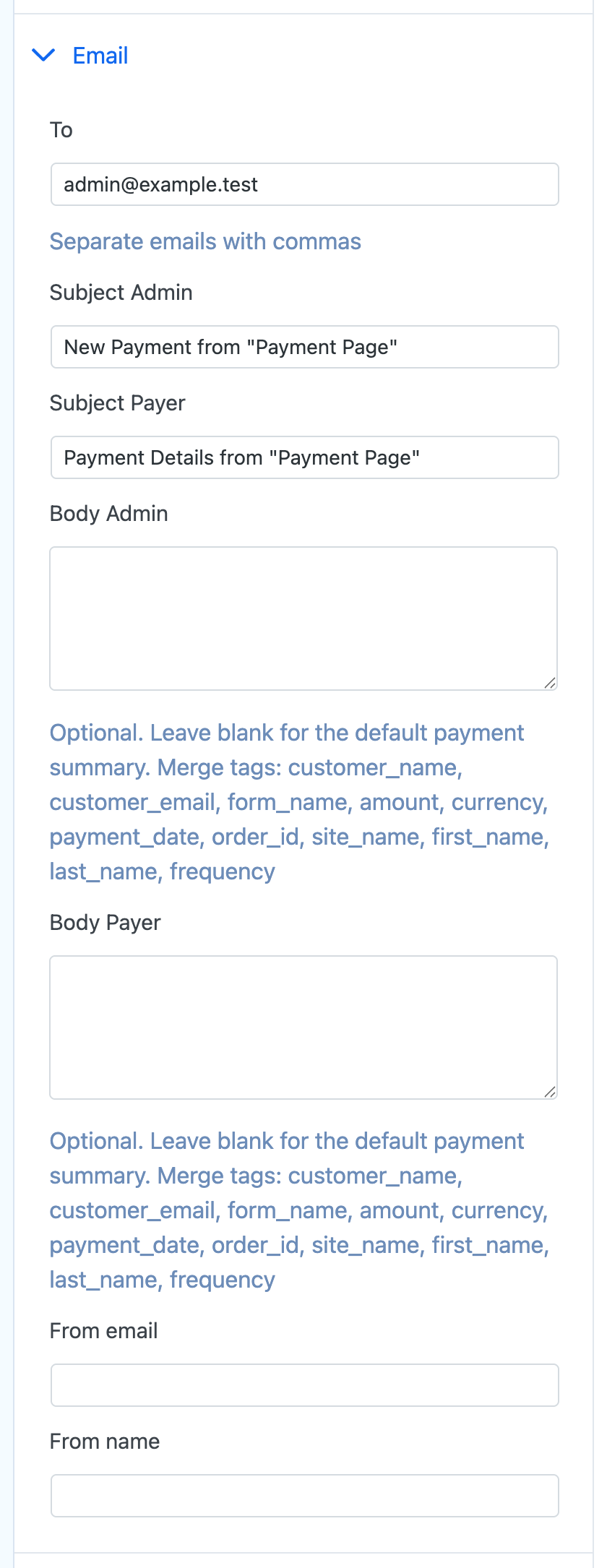
If you leave both bodies blank, the Admin notification and the Payer notification both use the same auto-generated default body (HTML list of label/value pairs). The screenshot above is a local settings capture; no synthetic email was sent merely to create documentation.
Stripe Webhook ConfigurationPaypal Webhook Configuration